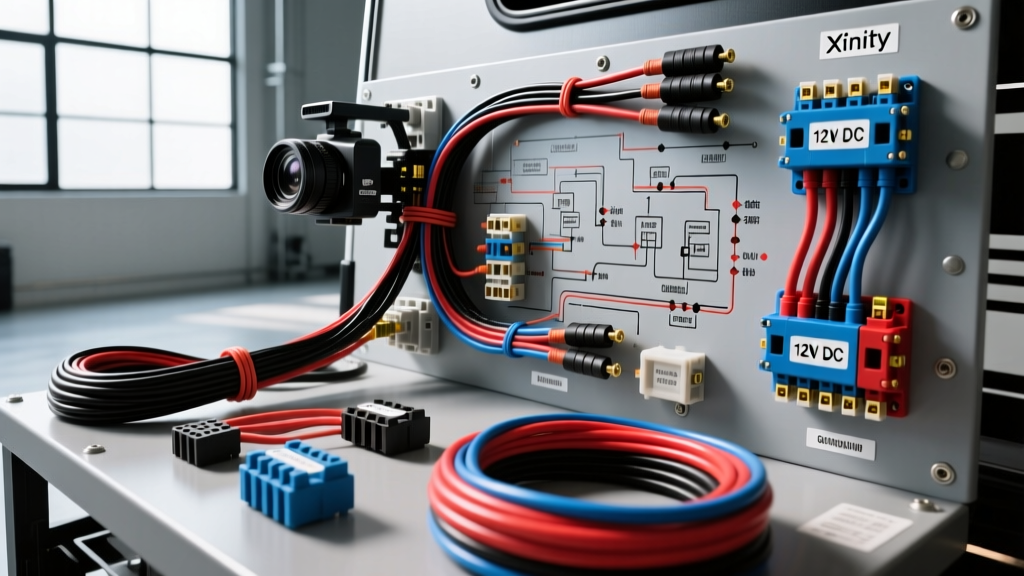
Adapting Home Security for the Road: The 12V Challenge
Integrating smart home ecosystems into recreational vehicles and motorhomes is a rapidly growing trend among full-time RVers and fleet managers. Performing an Xfinity camera installation on an RV provides excellent remote monitoring capabilities while parked at campgrounds or storage facilities. However, Xfinity Home security cameras are engineered for stable 120V AC indoor environments or hardwired exterior soffit mounts. Adapting these IP cameras to a mobile 12V DC automotive chassis introduces severe electrical and RF challenges.
This guide provides a comprehensive step-by-step troubleshooting flow and wiring diagram reference for integrating 5V and 12V Xfinity IP cameras into an RV or trailer's 12V DC electrical system. We will cover DC-DC buck converter integration, voltage drop diagnostics, and overcoming the Faraday cage effect inherent to aluminum-skinned trailers.
Core Wiring Diagram & Component Specifications
Most modern Xfinity indoor and outdoor cameras operate on 5V DC (via USB-C or Micro-USB) or 12V DC (via a proprietary barrel connector). To wire this into an RV's 12V house battery bank, you must use a high-efficiency DC-DC step-down (buck) converter or a direct fused line, depending on the camera's native voltage.
| Component | Specification | Notes / Failure Modes |
|---|---|---|
| Main Power Wire | 14 AWG OFC (Oxygen-Free Copper) | Do not use CCA (Copper Clad Aluminum). CCA suffers from high resistance and voltage drop over long RV runs. |
| Overcurrent Protection | 3A Mini ATO Blade Fuse | Placed within 18 inches of the positive battery terminal per SAE J1128 standards. |
| DC-DC Buck Converter | LM2596 Module (12V to 5.1V) | Must be rated for 3A continuous output. Set output to 5.1V to compensate for USB cable voltage drop. |
| USB Pigtail Pinout | Pin 1: VBUS (5V), Pin 4: GND | Pins 2 and 3 (D+ / D-) must be left floating or bridged with 5k resistors depending on camera handshake requirements. |
| Ground Connection | Ring Terminal to Chassis | Must be bonded to bare steel/aluminum chassis, not just trailer skin, to prevent galvanic corrosion. |
Step-by-Step Troubleshooting Flow
When an Xfinity camera installation fails in a mobile environment, the issue is rarely the camera itself. It is almost always a symptom of voltage starvation, ground loop interference, or RF attenuation. Follow this decision tree to isolate the fault.
Symptom 1: Camera Fails to Power On (No LED Indicator)
Initial Hypothesis: Open circuit, blown fuse, or DC-DC converter failure.
- Step 1: Verify Source Voltage. Set your digital multimeter (DMM) to DC Volts. Probe the RV house battery terminals. A healthy resting battery should read 12.6V to 12.8V. If it reads below 12.0V, the battery management system (BMS) or low-voltage disconnect (LVD) may have severed the circuit.
- Step 2: Load-Side Fuse Testing. Probe the load side of the 3A Mini ATO fuse holder. You should read identical battery voltage. If you read 0V, the fuse is blown or the inline crimp connector has vibrated loose due to road chatter.
- Step 3: DC-DC Converter Input/Output. Locate the LM2596 buck converter hidden in the RV's interior paneling. Measure the input pads (should be ~12.6V). Next, measure the output pads. If the input is present but the output is 0V, the buck converter's Schottky diode has likely failed due to a voltage spike from the RV's water pump or refrigerator compressor kicking on.
- Step 4: USB Pinout Continuity. If the converter outputs 5.1V, switch your DMM to continuity mode. Probe Pin 1 (VBUS) at the bare USB pigtail and the corresponding pin at the camera's receptacle. A lack of continuity indicates a broken strand inside the flexible conduit.
Symptom 2: Camera Boots but Drops Offline Intermittently
Initial Hypothesis: Voltage drop under load, or Wi-Fi signal degradation.
Xfinity cameras draw a baseline current of 300mA, but when the IR night vision LEDs engage or the motorized pan-tilt-zoom (PTZ) mechanism activates, current draw can spike to 1.5A. If your wiring is undersized, this spike causes a momentary voltage drop that forces the camera's internal logic board to reboot.
- Calculate Voltage Drop: Use the formula Vd = 2 x L x I x R (where L is length in feet, I is current in amps, and R is resistance per foot for your AWG). For a 25-foot run of 18 AWG wire carrying a 1.5A spike, the voltage drop will exceed 0.7V. This drops the 5.1V USB supply below the 4.4V brownout threshold of the camera.
- The Fix: Replace the 18 AWG secondary wiring with 14 AWG OFC. Solder all connections using rosin-core flux and seal them with 3M MDT marine-grade dual-wall heat shrink tubing to prevent moisture ingress and subsequent resistance spikes.
Symptom 3: Video Feed Shows Static, Rolling Bars, or Artifacts
Initial Hypothesis: Ground loop interference or EMI (Electromagnetic Interference).
RVs are electrically noisy environments. Inverters, LED drivers, and 12V motors generate massive amounts of EMI. If your camera's ground wire is tied to a shared ground bus bar that also services high-draw appliances, the camera will suffer from ground loop noise, manifesting as rolling horizontal bars on the live feed.
- Isolate the Ground: Disconnect the camera's ground from the common RV ground bus. Run a dedicated 14 AWG ground wire directly back to the negative terminal of the house battery bank (star grounding topology).
- Shielding Check: Ensure the DC-DC converter is housed in a grounded metallic enclosure. Unshielded buck converters act as localized RF jammers, which will simultaneously degrade the camera's Wi-Fi performance and introduce noise into the power line.
Overcoming the Faraday Cage Effect in Trailers
A successful Xfinity camera installation requires a stable network connection. Airstreams, aluminum-skinned travel trailers, and steel-bodied motorhomes act as massive Faraday cages, completely blocking the 2.4GHz and 5GHz Wi-Fi signals required by Xfinity's IoT hubs.
The Solution: Do not attempt to push a Wi-Fi signal through the RV skin. Instead, mount an exterior marine-grade Wi-Fi mesh node (such as a Ubiquiti UniFi AC Mesh) on the RV roof. Run a shielded CAT6 Ethernet cable through the RV's roof gland, terminating at a PoE (Power over Ethernet) injector inside. If your Xfinity camera supports Ethernet adaptation via a proprietary USB-to-Ethernet dongle, use it. Otherwise, configure the interior mesh node to broadcast a dedicated 2.4GHz SSID specifically for the camera, bypassing the exterior skin attenuation entirely.
Authoritative References & Standards
When modifying automotive and RV electrical systems, always adhere to established safety and performance standards to prevent fire hazards and equipment failure.
- SAE J1128: Low Tension Primary Cable standards dictate the thermal and physical requirements for automotive wiring. Always select wire with cross-linked polyethylene (XLPE) insulation for high-temperature routing near RV exhaust or inverters. Read more at SAE International.
- RVIA Low Voltage Standards: The RV Industry Association mandates strict overcurrent protection and wire routing protocols for 12V systems to prevent chafing against aluminum frames. Consult the RVIA Technical Department guidelines for proper grommet usage and chassis bonding.
- IEEE 802.11 RF Attenuation: Understanding signal loss through metallic structures is critical for IP camera placement. Refer to IEEE Xplore for empirical data on 2.4GHz attenuation coefficients in corrugated aluminum and fiberglass composites.