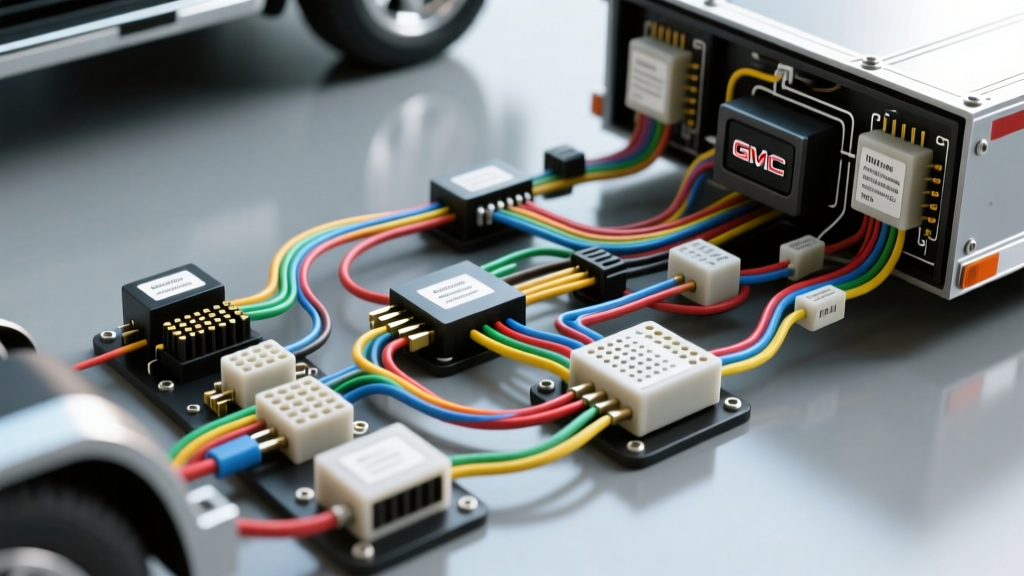
Understanding the GM Up-Level Camera Architecture
Integrating a camera system into a modern GMC Sierra or Yukon requires a deep understanding of the vehicle's proprietary Trailering App architecture. Unlike standard analog backup cameras that rely on a simple 12V trigger and composite video signal, the GM Up-Level Trailer Camera system utilizes a digital handshake over a Controller Area Network (CAN) bus alongside a dedicated 75-ohm coaxial video feed. When performing a GMC trailer camera installation, technicians and DIY enthusiasts frequently encounter communication faults, impedance mismatches, and power delivery issues that trigger Driver Information Center (DIC) warnings.
This step-by-step troubleshooting flow is designed to isolate electrical faults within the proprietary 12-pin trailer camera connector, the 7-way RV blade auxiliary circuits, and aftermarket RCA adapter harnesses. By following this decision tree, you can systematically eliminate variables ranging from blown underhood fuses to CAN bus termination failures.
GM 12-Pin Trailer Camera Connector Pinout Reference
Before beginning diagnostics, familiarize yourself with the GM proprietary 12-pin weatherpack connector located near the rear bumper. This connector is separate from the standard SAE J560 7-way blade and is dedicated solely to the Up-Level camera and Trailering App modules.
| Pin | Function | Wire Color | Gauge / Spec |
|---|---|---|---|
| 1 | 12V Auxiliary Power | Red | 14 AWG |
| 2 | Chassis Ground | Black | 14 AWG |
| 3 | CAN High (Data +) | Green | 18 AWG (Twisted) |
| 4 | CAN Low (Data -) | Green/White | 18 AWG (Twisted) |
| 5 | Coaxial Shield | Bare Copper | 75-Ohm Braid |
| 6 | Coaxial Video Core | White | 75-Ohm Core |
Step-by-Step Troubleshooting Decision Tree
Use the following diagnostic flow to isolate the root cause of your camera failure. Ensure your multimeter is set to DC Volts for power tests and Ohms for continuity tests.
Symptom 1: 'Check Trailer Camera' DIC Message (No Video)
This message indicates that the GMC Trailering App module cannot establish a digital handshake with the trailer-mounted camera module, or the video signal circuit is open.
- Test Point A: Verify 12V Auxiliary Power at Pin 1
- Action: Probe Pin 1 (Red wire) at the truck-side 12-pin connector with the ignition ON. Reference Pin 2 (Black) for ground.
- If Voltage is > 11.8V: Power is present. Proceed to Test Point B.
- If Voltage is < 1.0V: Check Fuse 43 (Trailer Aux Power) in the underhood fuse block. If the fuse is intact, inspect the 14 AWG red wire for a chafe point near the rear bumper bracket. Repair using adhesive-lined heat shrink.
- Test Point B: Verify CAN Bus Communication (Pins 3 & 4)
- Action: Set multimeter to Ohms. Measure resistance between Pin 3 (CAN High) and Pin 4 (CAN Low) on the truck-side connector.
- If Resistance is ~60 Ohms: The CAN bus termination is healthy. Proceed to Test Point C.
- If Resistance is 120 Ohms: One of the terminating resistors is missing or a wire is broken. Check for corroded splices in the Green/Green-White twisted pair.
- If Resistance is 0 Ohms: The CAN wires are shorted together. Trace the harness back to the Trailering App module behind the rear seat or in the center console.
- Test Point C: Coaxial Video Line Integrity (Pins 5 & 6)
- Action: Measure resistance between Pin 6 (Core) and Pin 5 (Shield).
- If Resistance is Infinite (OL): No short in the coax. The camera module on the trailer is likely dead or requires a firmware update via the Trailering App.
- If Resistance is near 0 Ohms: The coaxial cable is crushed or the BNC/FME connector at the camera housing has shorted. Replace the 75-ohm coaxial run.
Symptom 2: Intermittent Video Signal Loss While Towing
If the camera works in the driveway but cuts out when hitting bumps or highway expansion joints, the issue is mechanical rather than purely electrical.
- Inspect Pin Drag and Weatherpack Seals: The GM 12-pin connector uses delicate gold-plated pins. If the male and female housings are not fully seated, the locking tab will not engage, allowing the 18 AWG CAN wires to vibrate out of contact. Apply a small amount of dielectric grease (GM Part # 12377900) to the weatherpack seal to reduce insertion friction and ensure a flush mating.
- Check the 7-Way RV Blade Ground (Pin 1): Even though the 12-pin has its own ground, the trailer's overall chassis ground relies on the 7-way blade. A loose 14 AWG ground wire at the trailer tongue will cause ground offsets, leading to video static and CAN bus dropouts. Torque the ground ring terminal to the trailer frame at 15 lb-ft and sand away any paint or rust to bare metal.
- Examine the Coaxial Bend Radius: 75-ohm coaxial cable used for the video feed is highly sensitive to sharp bends. If the cable is zip-tied too tightly along the trailer A-frame, the internal dielectric foam can compress, altering the impedance and causing signal reflection. Maintain a minimum bend radius of 1.5 inches.
Symptom 3: Aftermarket AUX Camera Not Recognized
Many owners attempt to integrate an aftermarket cargo box or gooseneck camera into the GMC Trailering App using an RCA-to-12-pin adapter harness (such as GM Part # 84194230 or aftermarket equivalents). Failures here usually stem from signal format mismatches.
- Impedance Mismatch: Standard aftermarket RCA cameras output a 75-ohm NTSC/PAL analog composite signal. However, some newer GM HD camera modules expect a digital LVDS (Low-Voltage Differential Signaling) signal over the coaxial pair. If you are using an analog RCA adapter, ensure your specific GMC model year supports analog AUX inputs via the Trailering App settings menu. (Typically, models 2020-2022 accept analog, while 2023+ may require a digital converter box).
- Powering the Aftermarket Camera: The 12-pin connector does not provide a dedicated 12V trigger wire for the camera itself; it only powers the GM trailer module. You must tap into the 12V Auxiliary circuit on the 7-way RV blade (Pin 4, usually Red or Black 14 AWG) to power your aftermarket camera. Use a 30A automotive relay to isolate the camera's power draw from the truck's sensitive CAN bus circuitry.
- Line Output Converter (LOC) Errors: Never use an audio Line Output Converter to adapt video signals. Audio LOCs are designed for high-impedance speaker-level signals and will severely distort the video waveform, resulting in a rolling or black screen on the DIC.
Advanced Multimeter Diagnostics & Voltage Drop Testing
When standard continuity tests pass but the system still throws a U0230 (Lost Communication With Trailer Module) code, perform a dynamic voltage drop test on the 14 AWG ground circuit.
- Set your multimeter to DC Volts.
- Connect the red probe to the negative battery terminal of the truck.
- Connect the black probe to Pin 2 (Ground) on the trailer-side 12-pin connector.
- Turn the ignition ON and activate the Trailering App to draw maximum current.
- A healthy ground circuit will show a voltage drop of less than 0.2V. If your reading exceeds 0.5V, you have high resistance in the ground path. This ground offset will corrupt the CAN Low signal, which operates at voltages as low as 1.5V. Clean all ground lugs and upgrade the ground wire to 12 AWG if the trailer is over 30 feet long.
Authoritative References
For further technical specifications and wiring schematics, consult the following authoritative resources:
- GM Upfitter Body Builder Manuals - The official source for GMC Sierra and Yukon chassis wiring diagrams, fuse block locations, and Trailering App module pinouts.
- SAE J560 Standard - Society of Automotive Engineers specifications for the 7-way electrical connector, including auxiliary power and ground requirements for heavy-duty towing.
- etrailer.com Trailer Wiring FAQ - Comprehensive database of aftermarket adapter harnesses, RCA-to-12-pin wiring solutions, and real-world installation guides for auxiliary camera integration.